OpenAI Codex CLI: Terminal Coding Agent Setup Guide 2026
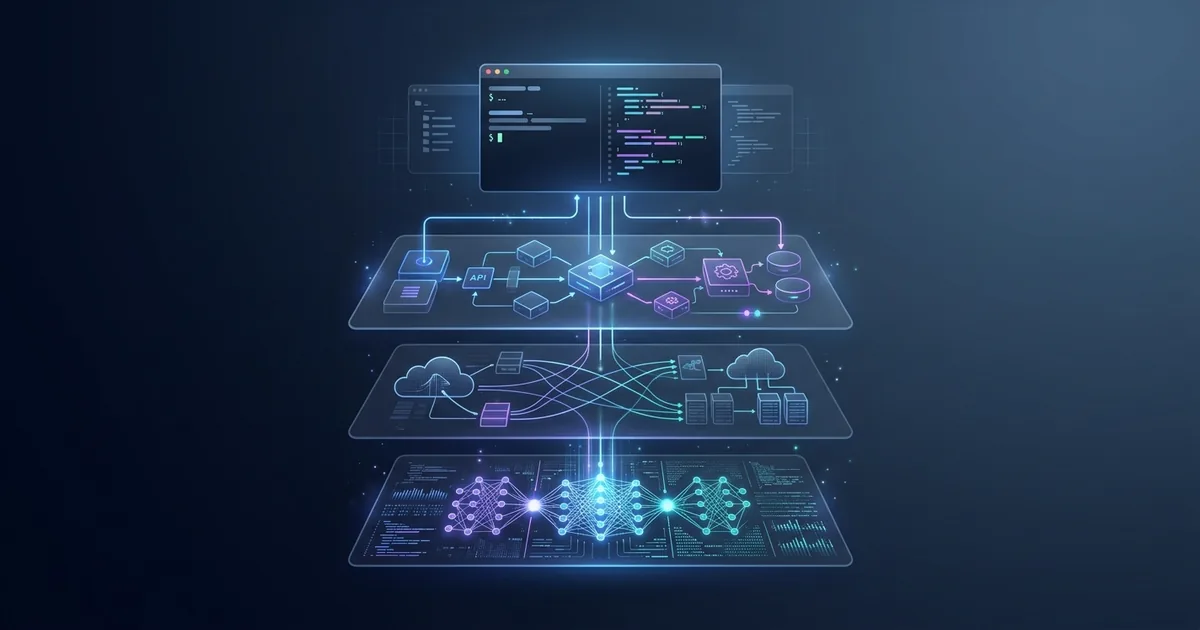
The year AI coding agents left the browser and moved permanently into the terminal started with one open-source release: OpenAI Codex CLI. Since OpenAI published the repository in April 2025, it has accumulated tens of thousands of GitHub stars (check the repo for the live count) and undergone a full rewrite from TypeScript to Rust — a signal that this is not a weekend side project, but a serious infrastructure commitment.
Codex CLI does something no IDE plugin can: it reads your entire repository as context, makes edits across multiple files simultaneously, executes shell commands, and asks for your approval at every boundary you configure. It runs locally on your machine. It sandboxes every command it runs. And as of early 2026, it works with a growing ecosystem of multi-agent patterns, MCP integrations, and enterprise proxy configurations.
This guide covers everything you need to go from zero to productive: installation, safety mode selection, the sandboxing architecture, multi-agent workflows, and an honest comparison with Claude Code so you can choose the right tool for your workflow.
Why Codex CLI Matters in 2026
The shift from "AI autocomplete" to "AI agent" is now the defining change in developer tooling. Tools that passively suggest the next line are being replaced by agents that can understand intent, plan a multi-file refactor, run tests, read the output, and iterate — all from a single terminal prompt.
Codex CLI sits at the center of this shift for OpenAI's ecosystem. It is the open-source, locally-executable companion to Codex Cloud (accessible via chatgpt.com/codex), and it is architecturally different from browser-based AI coding tools:
- Local execution: No code leaves your machine unless you explicitly allow network access
- Full repository context: The agent reads your project directory structure, not just the open file
- Sandboxed commands: Shell execution is isolated at the OS level using macOS Seatbelt or Linux Landlock
- Configurable trust levels: Three distinct approval policies let you tune automation vs. control
For developers who live in the terminal — DevOps engineers, backend developers, CLI tool authors — Codex CLI is the first AI coding agent that feels native to that environment rather than bolted onto it.
Installation and Initial Setup
Codex CLI requires Node.js 22 or later. Installation takes a single command.
Via npm (recommended for most developers):
npm install -g @openai/codex
Via Homebrew (macOS):
brew install --cask codex
Via binary download:
Download the platform-specific binary from the official GitHub releases page for use in environments where npm is unavailable.
Signing In
After installation, launch Codex CLI from your project directory:
cd /path/to/your/project
codex
On first launch, the interactive setup prompts you to sign in with your ChatGPT account. Codex is included at no additional cost for ChatGPT Plus, Pro, Business, Edu, and Enterprise plan subscribers. The $20/month Plus plan covers the base tier; Pro and higher unlock higher usage limits.
Once authenticated, Codex drops into a full-screen terminal UI (TUI) — a conversational interface where you type prompts and watch the agent read files, propose changes, and (with your approval) execute commands.
Your First Prompt
With your project open, try something concrete:
codex "Explain the architecture of this codebase and identify any obvious code smells"
Codex will scan the directory tree, read key files, and return an analysis grounded in your actual code — not a generic template answer.
Understanding Safety Modes
This is the most important configuration decision you will make, because it determines when Codex acts autonomously and when it waits for your approval.
Codex CLI has two independent control layers that work together:
- Sandbox mode — what the agent can technically do (file access, network access)
- Approval policy — when it must ask before acting
The combination of these two layers produces three practical operating presets:
Suggest Mode (Default — Safest)
codex # launches in suggest mode by default
In suggest mode, Codex proposes every action — file edits, shell commands, everything — and waits for your explicit approval before executing. Think of it as pair programming where the AI drafts, you decide.
Best for: Learning the tool, working on critical production code, or situations where you want full visibility into every change.
Auto-Edit Mode
codex --approval-policy on-failure
Codex automatically applies file edits but pauses before executing shell commands. This balances speed with safety: code changes happen immediately, but anything that affects your environment (running tests, installing packages, calling external services) still requires approval.
Best for: Iterating on code quickly while maintaining control over side effects.
Full-Auto Mode
codex --full-auto
In full-auto, Codex reads files, makes edits, and runs commands within your working directory without asking for approval. It still asks before editing files outside the workspace or accessing the network.
Under the hood, --full-auto sets sandbox_mode = "workspace-write" and approval_policy = "on-request". The sandbox enforces the boundaries at the OS level — so even in full-auto, the agent cannot silently exfiltrate your code or install system-level packages.
Best for: Batch processing tasks, running Codex overnight on a defined task, automated CI pipelines.
Configuring via AGENTS.md
Codex reads project-level configuration from AGENTS.md at the repository root — the open standard also supported by Cursor, Aider, and other tools. This is where you define persistent behavior for your project:
# AGENTS.md

## Permissions
- Working directory: read and write allowed
- Network: ask before any external requests
- Shell: auto-approve test runners (pytest, jest, cargo test)
- Shell: ask before package installs

## Project Context
This is a Python FastAPI service. The main entrypoint is `app/main.py`.
Run tests with: `pytest tests/ -v`
The Sandboxing Architecture
Codex CLI's sandboxing is one of its most technically interesting features, and it is the reason you can run full-auto mode with meaningful confidence.
macOS: Apple Seatbelt
On macOS, every command Codex executes passes through Apple's Seatbelt framework via /usr/bin/sandbox-exec. Seatbelt policies control:
- Filesystem access: which paths the process can read and write
- Network access: whether the process can open network connections
- Process spawning: what child processes the sandboxed command can create
Codex constructs a sandbox profile dynamically based on your configuration. You can test how a specific command would behave inside the sandbox:
codex debug seatbelt -- python3 my_script.py
Linux: Landlock + seccomp
On Linux, Codex uses a combination of Landlock (filesystem access control) and seccomp (system call filtering). A standalone helper process called codex-linux-sandbox provides defense-in-depth isolation, with bubblewrap (bwrap) compiled into the build for additional process isolation.
To debug the Linux sandbox:
codex debug landlock -- python3 my_script.py
The practical implication: if Codex runs malicious or broken code that tries to read your SSH keys or call home to a remote server, the sandbox blocks it at the OS level before any damage occurs.
Multi-Agent Workflows
One of Codex CLI's more advanced features is the ability to run multiple agents on the same repository simultaneously using isolated git worktrees. This turns sequential, single-agent workflows into parallelized task execution.
# Launch a subagent on a specific branch
codex --worktree feature/auth "Refactor the authentication module to use JWT"

# Meanwhile, in another terminal
codex --worktree feature/tests "Write integration tests for the payment service"
Each subagent works in its own worktree, so their file changes do not conflict. When done, you review the diffs from each worktree and merge what you want.
This pattern is particularly effective for:
- Running a test-writing agent while a feature-writing agent works in parallel
- Exploring multiple implementation approaches without branching conflicts
- Automated code review: one agent writes, another reviews before you commit
MCP Integration
Codex CLI supports the Model Context Protocol (MCP), giving it access to external tools and data sources beyond the local filesystem. You configure MCP servers in your project's config.toml:
[mcp_servers.github]
command = "npx"
args = ["-y", "@modelcontextprotocol/server-github"]

[mcp_servers.postgres]
command = "npx"
args = ["-y", "@modelcontextprotocol/server-postgres", "postgresql://localhost/mydb"]
With these configured, Codex can query your database schema, read GitHub issues, and incorporate that context into its code changes — without you manually copying and pasting information into the prompt.
Codex CLI vs Claude Code
Both tools are terminal-native AI coding agents with strong open-source credentials and active development velocity. The differences are architectural rather than qualitative. For the full cost-and-workflow comparison, see our Codex vs Claude Code guide.
| Feature | OpenAI Codex CLI | Claude Code |
|---|---|---|
| License | Apache 2.0 | Proprietary (CLI open source) |
| Primary language | Rust (95.6%) | TypeScript |
| Config standard | AGENTS.md | CLAUDE.md |
| Sandbox | macOS Seatbelt + Linux Landlock | macOS Seatbelt |
| Multi-agent | Native worktree subagents | Native parallel sessions |
| MCP support | Yes | Yes |
| Model | GPT-5.4 default; GPT-5.5 for hardest tasks | Claude Opus 4.8 / Sonnet |
| Included plan | ChatGPT Plus ($20/mo) | Claude Pro ($20/mo) |
| Terminal-Bench 2.1 (official leaderboard) | 83.4% (GPT-5.5) | 78.9% (Opus 4.8) |
| Code reasoning depth | Fast, directive | Methodical, questions assumptions |
The benchmark numbers are one data point, not a verdict. On the official Terminal-Bench 2.1 leaderboard, Codex CLI with GPT-5.5 sits at the top (83.4%) and Claude Code with Opus 4.8 follows at 78.9% — a real but narrow gap of roughly 4.5 points on terminal-native tasks (scripting, file manipulation, command construction, server setup). That spread is far tighter than older comparisons suggested. The leaderboard also moves with every model release: Claude Code paired with newer models has at times closed or reversed the gap, so check the live standings before treating any single number as settled.
For complex multi-file reasoning, refactoring that requires deep semantic understanding, or workflows where you want an agent that verifies its own assumptions before acting, Claude Code's deliberate approach often produces better outcomes despite the benchmark gap.
When to Use Codex CLI — and When to Skip It
The comparison table shows what differs. This is the call on whether Codex CLI is the right agent for your situation.
Use Codex CLI when:
- You already pay for ChatGPT Plus or Pro. Codex is bundled at no extra cost, so it is the cheapest serious terminal agent for OpenAI subscribers to trial.
- Your work is terminal-native. Scripting, DevOps, build and CI fixes, file-and-command manipulation — the workload Terminal-Bench rewards and where Codex currently leads.
- You want OS-level sandboxing for unattended runs. Seatbelt on macOS and Landlock plus seccomp on Linux make full-auto a measured choice rather than a leap of faith.
- You need to parallelize. Worktree subagents let one agent write tests while another implements a feature without branch conflicts.
Skip it (or reach for something else) when:
- You are not in the OpenAI ecosystem. If your team standardizes on Anthropic, Claude Code avoids a second subscription and sits within a few points of Codex on the leaderboard.
- The task is deep multi-file semantic reasoning. For large refactors where the agent needs to question its own assumptions, Claude Code's slower, more deliberate loop tends to take fewer wrong turns.
- You live in the editor, not the shell. An IDE-native agent like those in our Cursor vs Windsurf vs Zed comparison fits that workflow better than a TUI.
- You need offline or fully local inference. The official CLI sends context to OpenAI's API; for air-gapped or privacy-strict work, evaluate a local-model setup instead.
Quick decision checklist. Codex CLI is likely the right pick if you can check four or more:
- We already have ChatGPT Plus or Pro seats
- Most of our agent work happens in the terminal, not the IDE
- We want to run an agent unattended and need OS-level sandboxing
- We benefit from running multiple agents in parallel worktrees
- We are comfortable sending code context to OpenAI's API
- The GPT-5.4 / 5.5 family is our preferred model
Three checks or fewer, and it is worth weighing Claude Code or a broader coding-agent comparison before you commit a team to it.
Common Mistakes to Avoid
Running full-auto on unfamiliar codebases. Full-auto is powerful, but Codex can and will make changes you did not intend when it misunderstands the codebase structure. Start with suggest mode on any new project. Graduate to auto-edit once you've seen how the agent handles your specific stack.
Skipping AGENTS.md. Without project-level configuration, Codex uses generic defaults. Defining your test runner, forbidden paths, and project context in AGENTS.md meaningfully improves output quality and safety.
Using Codex for tasks that require external knowledge. Codex reads your repository; it does not have real-time internet access by default. If you need it to check a library's latest API, either configure a web search MCP server or paste the relevant documentation into your prompt.
Not reviewing diffs before committing. Even in suggest mode, review the full diff before accepting. The agent is optimizing for your stated goal, which may not perfectly match your unstated constraints.
Ignoring the sandbox debug commands. If Codex is failing to execute a command you expect to work, codex debug seatbelt and codex debug landlock are your first debugging tools. Many sandbox failures are configuration issues, not bugs.
FAQ
Q: Is OpenAI Codex CLI free to use?
Codex CLI is free to download and open source (Apache 2.0). To use it beyond read-only mode, you need a ChatGPT account on a paid plan. ChatGPT Plus ($20/month) is the entry tier; Pro and the business and enterprise tiers raise the usage ceiling. Limits are metered on a rolling window and vary by plan and model, so heavy automation users should size their plan against OpenAI's current published limits rather than a fixed interaction count.
Q: Does Codex CLI send my code to OpenAI's servers?
Yes, prompts and code context are sent to OpenAI's API to generate responses, similar to using the ChatGPT web interface. The sandboxing features control what commands run locally — they do not affect data transmission to the API. If data privacy is a concern, review OpenAI's enterprise data handling agreements, or consider self-hosted models via the open-codex fork that supports Ollama and other local providers.
Q: How is Codex CLI different from GitHub Copilot?
Copilot is an IDE autocomplete layer — it suggests code inline as you type. Codex CLI is an autonomous agent — you give it a task and it reasons, plans, edits files, and runs commands to accomplish the goal. They solve different problems: Copilot accelerates individual keystrokes; Codex CLI replaces entire task-execution workflows.
Q: Can I use Codex CLI with models other than GPT?
Yes. From within an interactive session, use /model to switch between available models including GPT-5.4 (default), GPT-5.5, GPT-5.3-Codex, and others on your plan. If you use the open-source community fork open-codex, it supports arbitrary providers including Ollama, Anthropic, and Mistral — though enterprise features like enterprise CA support are specific to the official OpenAI CLI.
Q: How does Codex CLI handle secrets in my repository?
Codex CLI reads files in your working directory as context. It does not have a built-in .env or .gitignore filter — if a file is readable, it may be included in context. Best practice: add a [context] exclusion section in your AGENTS.md to prevent sensitive files from being read, and keep secrets in environment variables rather than files.
What Effloow Added
OpenAI's docs cover Codex CLI's commands; they don't tell you how to run it safely or when a different agent fits better. We added the operational judgment:
- A safety-mode progression — suggest, then auto-edit, then full-auto only for well-defined batch work — mapped to the OS-level sandboxing (Seatbelt/Landlock) so "full-auto" is a measured choice, not a leap of faith.
- A like-for-like Codex-vs-Claude-Code table (license, language, sandbox, config standard, Terminal-Bench) using the current official leaderboard figures rather than a stale screenshot, with the benchmark flagged as one data point, not a verdict — and each tool linked to its official source.
- A when-to-use / when-to-skip checklist keyed to your subscriptions, workload, and privacy needs, so the adoption decision is a few honest yes/no answers rather than a paragraph of hedging.
- An honest split decision: Codex for raw terminal automation speed, Claude Code for deliberate multi-file reasoning, with the note that many teams run both.
The value is the safe-operation path and the when-to-use-which call, not a paraphrase of the command reference.
Key Takeaways
- Install with
npm install -g @openai/codexand sign in with your ChatGPT Plus/Pro account - Start in suggest mode, graduate to auto-edit, use full-auto only for well-defined batch tasks
- macOS Seatbelt + Linux Landlock provide OS-level sandboxing — full-auto is safer than it sounds
- AGENTS.md is your project-level configuration — define it for every project to improve results
- Multi-agent worktrees enable parallel task execution without branching conflicts
- MCP support extends Codex beyond your local filesystem to databases, APIs, and external data
- Compare the field in our terminal AI coding agents comparison before standardizing your team on one
- Codex CLI leads on terminal-native benchmarks (83.4% vs 78.9% on the Terminal-Bench 2.1 leaderboard), but the margin is narrow and shifts with each release; Claude Code is often stronger on deep semantic reasoning
Codex CLI is the best terminal-native AI coding agent available for developers already in the OpenAI ecosystem. Its Rust-based architecture, OS-level sandboxing, and native multi-agent support make it a genuine infrastructure tool — not a chatbot wrapper. If you're evaluating it against Claude Code, the honest answer is they're optimized for different strengths: pick Codex if you need raw terminal automation speed, pick Claude Code if you need deliberate multi-file reasoning. Most serious teams end up using both.
Get the next one
in your inbox.
One short weekly dispatch with new guides, tools, and what we tested. No spam, unsubscribe anytime.
Get weekly AI tool reviews & automation tips
Join our newsletter. No spam, unsubscribe anytime.
More in Articles
Source-verified guide to Claude Code, Codex CLI, Gemini CLI, and Aider for terminal-based AI coding workflows in June 2026.
Complete guide to GitHub Copilot agent mode in JetBrains IDEs in 2026: inline agents, CLI agent, worktree isolation, MCP support, and Claude Opus 4.7.
What AWS Kiro's specs, hooks, and Powers actually do — with current credit pricing, real hook trigger names, and when to skip it.
Kimi Code K2.6 review: 58.6% SWE-Bench Pro, 300-agent swarms, $0.60/M input. How it compares to Claude Code in real-world coding tasks.
Tools you can use
Build tool-calling schemas visually. Define a function and typed parameters, get ready-to-paste tool blocks for OpenAI Chat Completions, OpenAI Responses, and Anthropic Messages. 100% client-side.
Interactive quiz to find the best vibe coding tool for your project. Compare Cursor, Lovable, Bolt.new, Replit, v0, and Windsurf on pricing and features.